> For the complete documentation index, see [llms.txt](https://emca.emudhra.com/llms.txt). Markdown versions of documentation pages are available by appending `.md` to page URLs; this page is available as [Markdown](https://emca.emudhra.com/tutorials-and-guides/setting-up-time-stamping.md).
# Setting Up Time Stamping
Time Stamping in emCA allows administrators to configure and manage a Time Stamping Authority (TSA) for providing trusted timestamp services. The setup involves creating key profiles, generating key pairs and CSRs, issuing TSA certificates, and registering clients. This section provides a step-by-step guide to complete the configuration and enable timestamping in emCA.
## Manage Key Profile
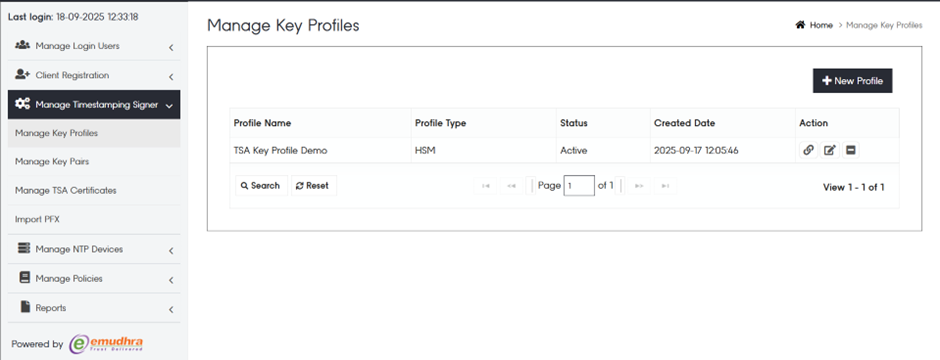
To begin configuring Time Stamping, log in to the **eMudhra TSA portal** with your credentials.
Navigate to **Manage Timestamping Signer → Manage Key Profile → New Profile**.
Enter the following details:
* **Profile Name**: Identifier for the key profile
* **Profile Type**: Location where the key profile is generated
* **Configuration Type**: Select the configuration type (e.g., PKCS11)
* **HSM Password**: Provide the hardware security module password
Click **Confirm** to complete the key profile creation.

The new profile will be listed under **Manage Key Profiles → View All**.
## Manage Key Pair
Next, generate a key pair using the key profile created in the previous step.
Go to **Manage Timestamping Signer → Manage Key Pair → Generate Key Pair** and provide:
* **Number of Keys**
* **Key Profile** (select the one you just created)
* **Signature Algorithm**
* **Key Algorithm & Size**
Click **Generate Key Pair** to create the key pair.
\
The generated key pair will appear under **View All**.
To generate a CSR (Certificate Signing Request), click on the **Action** icon of the created key pair. Enter the required **Subject DN details**:
* Common Name
* Organization
* Organization Unit
* Country
Click **Save and Proceed**, then **Create** to generate the CSR.

\
Download the CSR for signing by the CA.
## TSA Certificate Profile Creation
Log in as an **Administrator** and navigate to **Manage Profiles → Certificate Profiles → X.509**.
Provide the following basic information:
* **Profile Type**: User
* **Sub Type**: New
* **Profile Name**: Identifier for the TSA profile
* **Validity**: Certificate validity period
* **Issuing CA**: Select the appropriate issuing CA
* **Signature Algorithm**: Select the preferred algorithm
Add the required **Subject DN details**:
* Common Name
* Country
* Organization
* Organization Unit
Configure **X.509 Certificate Extensions**, such as:
* Basic Constraints
* Key Usage
* Enhanced Key Usage
* Authority Key Identifier
* Subject Key Identifier
* Authority Information Access
* CRL Distribution Points
* Certificate Policy
Click **Proceed** and authenticate to complete the creation.
The profile will be available under **View All**.
## Sign CSR – TSA Certificate
Log in as an **Officer** and navigate to **Manage User Certificate → Sign CSR**.
* Upload the CSR generated earlier
* Select the **TSA Certificate Profile** created by the Administrator
* Choose the **Certifying Authority** (Root CA or relevant issuer)
Click **Proceed** to view CSR details, then authenticate as an Officer.
\
Once authenticated, click **Sign CSR** to generate the signed certificate.
\
The signed certificate will be ready for download.
Signed Certificate
## Manage TSA Certificate
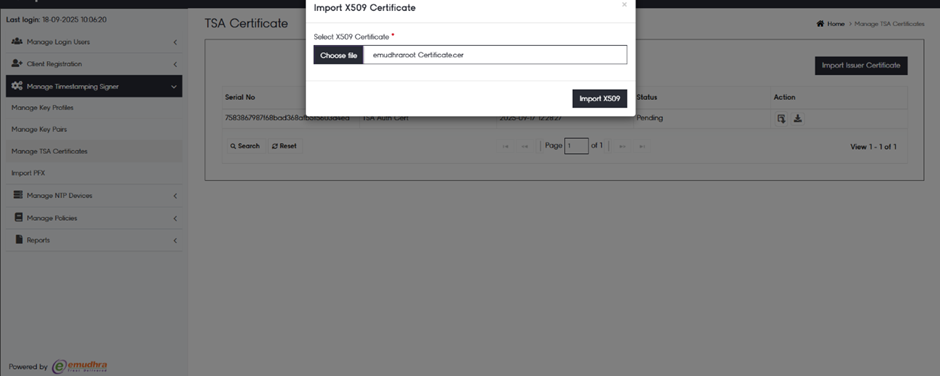
Log in as **TSA Admin** and navigate to **Manage Timestamping Signer → Manage TSA Certificates**.
Click **Import Issuer Certificate** and upload the Root/Issuer CA certificate. A success message will confirm the import.
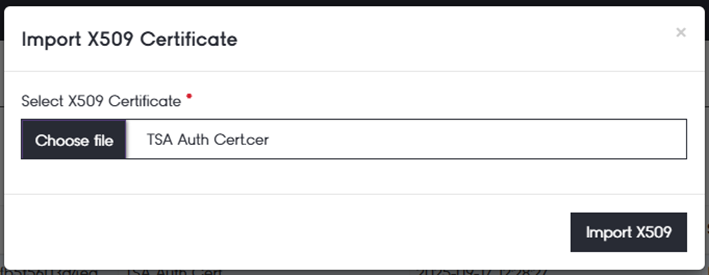
Click the **Import** action for the TSA Auth Certificate and upload the signed TSA certificate.\
A success response will be displayed upon successful import.
The signed TSA certificate will now be visible under the TSA Certificates list.
## Client Registration – TSA Services
To register clients for TSA services, log in as **TSA Admin**.
Go to **Client Registration → New Registration** and provide:
* Client Name
* Username
* Password
* Confirm Password
Click **Save and Proceed**, then **Submit**.

\
A confirmation message will confirm successful client registration.
\
Registered clients will be listed under **View All**.
## Manage NTP Devices
To configure NTP devices, go to **Manage NTP Devices → New NTP Device**.
Provide the following:
* NTP Device Name
* NTP Device URL
Click **Proceed** to add the device.\
A confirmation message will confirm successful addition.
## Manage Policy
To define TSA policies, go to **Manage Policies → New Policy**.
Provide the following details:
* **Policy ID**
* Select the **Signed TSA Certificate** from the dropdown
* **NTP Server Name**
If you select **Mark as Default**, the policy will be applied to all clients by default.
\
Click **Proceed** to save the policy.\
A success message will confirm policy creation.
## Time Stamping endpoint for TSA requests