> For the complete documentation index, see [llms.txt](https://emca.emudhra.com/llms.txt). Markdown versions of documentation pages are available by appending `.md` to page URLs; this page is available as [Markdown](https://emca.emudhra.com/tutorials-and-guides/setting-up-ocsp.md).
# Setting Up OCSP
The Manage OCSP Certificate feature in emCA allows users to configure the created OCSP certificate at the specified URL. This is useful for deploying the OCSP certificate to a public-facing web server or other device where it can be accessed by clients.
## Create OCSP Certificate Profile
As step 1, Officer needs to use the OCSP profile created by CA Administrator. CA Administrator OCSP Profile creation steps are covered under [Configuring Certificate Profiles - OCSP Certificate Profile](/getting-started/configuring-certificate-profiles.md#ocsp-certificate-profile).
## Generate Key Pair
As step 2, Officer need to Generate a new Key Pair
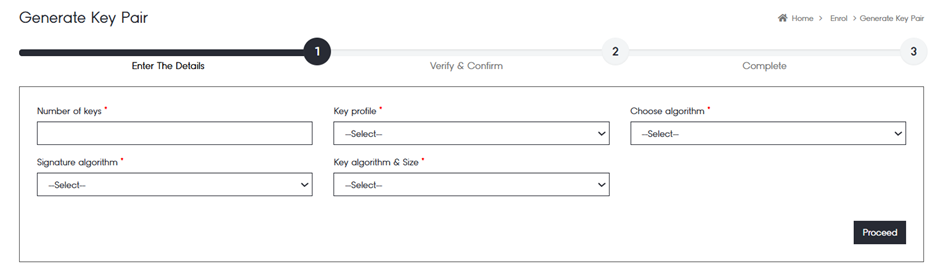
Click on "Generate Key Pair " to open the following dialog:
Enter the number of keys that you want to generate. In general, you will need 1 key for 1 CA and 1 more key, if that CA will receive an OCSP certificate.
Select the "Key Profile" you want to use from the first dropdown list.
Choose the "Algorithm" from the drop-down
Select the "Signature algorithm". This will filter the element for the third dropdown list accordingly.
Select the "Key Algorithm" and "Key Size"
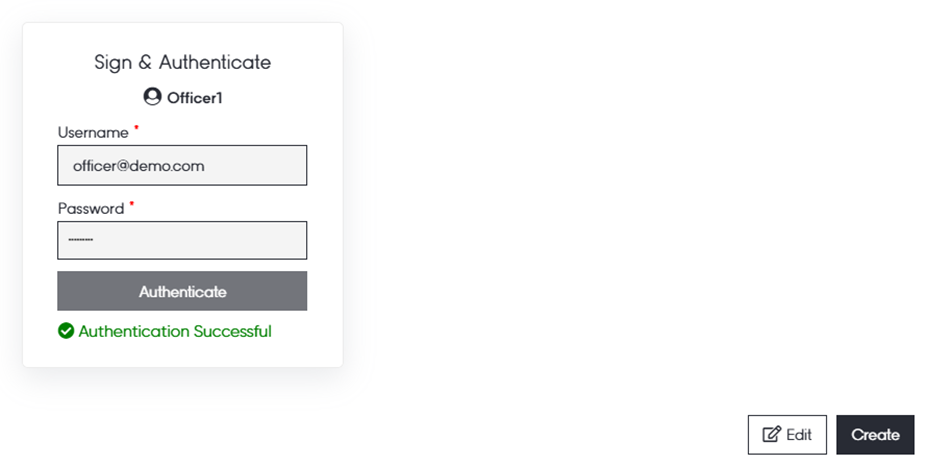
Press "Proceed" to continue and authenticate the action via Username & Password or Hard/ Soft token basis.
Click on "Generate Key Pair(s)" to generate the keys
After the successful generation of the key pair, click on "View all" or "+ New" to continue with the new Key Pair creation.
## Generate CA Certificate
After creating a key pair, select the "Generate Certificate" option available in the "Action" column of the created key pair.
Click on !\[A black flag on a white background
AI-generated content may be incorrect.]\(data:image/jpeg;base64,/9j/4AAQSkZJRgABAQEAkACQAAD/2wBDAAoHBwkHBgoJCAkLCwoMDxkQDw4ODx4WFxIZJCAmJSMgIyIoLTkwKCo2KyIjMkQyNjs9QEBAJjBGS0U+Sjk/QD3/2wBDAQsLCw8NDx0QEB09KSMpPT09PT09PT09PT09PT09PT09PT09PT09PT09PT09PT09PT09PT09PT09PT09PT09PT3/wAARCAA0ADgDASIAAhEBAxEB/8QAHwAAAQUBAQEBAQEAAAAAAAAAAAECAwQFBgcICQoL/8QAtRAAAgEDAwIEAwUFBAQAAAF9AQIDAAQRBRIhMUEGE1FhByJxFDKBkaEII0KxwRVS0fAkM2JyggkKFhcYGRolJicoKSo0NTY3ODk6Q0RFRkdISUpTVFVWV1hZWmNkZWZnaGlqc3R1dnd4eXqDhIWGh4iJipKTlJWWl5iZmqKjpKWmp6ipqrKztLW2t7i5usLDxMXGx8jJytLT1NXW19jZ2uHi4+Tl5ufo6erx8vP09fb3+Pn6/8QAHwEAAwEBAQEBAQEBAQAAAAAAAAECAwQFBgcICQoL/8QAtREAAgECBAQDBAcFBAQAAQJ3AAECAxEEBSExBhJBUQdhcRMiMoEIFEKRobHBCSMzUvAVYnLRChYkNOEl8RcYGRomJygpKjU2Nzg5OkNERUZHSElKU1RVVldYWVpjZGVmZ2hpanN0dXZ3eHl6goOEhYaHiImKkpOUlZaXmJmaoqOkpaanqKmqsrO0tba3uLm6wsPExcbHyMnK0tPU1dbX2Nna4uPk5ebn6Onq8vP09fb3+Pn6/9oADAMBAAIRAxEAPwD1yLzpYwwcDNP8uf8A56Ci0/491ovLuOxtJLiX7kYyaTdtwSuHlz/89B+VHlz/APPQVi6F4ysNemeO33Iy/wB7vW+rq/3WB+hqrCIvLn/56Cjy5/8AnoKnpAwJ4IOKQytL50UZYuDiin3f/Hu1FABaf8e61HqkSTabOkgypQ8VJaf8e60l/wD8eM3+4amfwsqO6PCZZ5dP1GYWkhiwxAxU8PiPVoGzHeyCquo/8hKf/eqvketEG+VCkveZ0M3jjV5YdgnZTj7wrqPhxqN3etN9qnaX615tXoPwv+9NWsFuZz6HoN3/AMe7UUXf/Hu1FQWFp/x7rSX/APx4zf7hpbT/AI91qSSMSxsjdGGDSkrpoadnc8u8M+F7PxDe3kl5uwj4AWujm+GmjtERGJFbsc1u6RoVvo7zNASfNbcc1qU7KySFrds80Pwun+0cXKeVnp3rsvD/AIatPD8BS3yWb7xNbNFNNpWE1cgu/wDj3aii7/492opDC0/491qeiigAooooAKKKKAILv/j3aiiigD//2Q==) to start generating a CA certificate.
The above window opens after clicking on “Action”.
There are two different options available for generation:
* Certificate – use the key to generate a new CA certificate directly.
* CSR – use the key to generate a Certificate Signing Request (CSR).
Choose "Certificate" if you want to directly generate a new CA certificate. This option is applicable if the CA is "self-signed" or the "issuing CA" is in the same instance
Choose "CSR" if the issuing CA is not on the same instance. This is the case if ROOT and SUB CAs are not operated on the same system.
{% hint style="info" %}
Note: You can operate CAs using the appliance functionalities that have their trust anchored outside the Appliance using the option CSR.
{% endhint %}
CA Administrator created certificate profiles will be available under “Certificate profile” dropdown.
For "Subject DN Details", enter all Subject Distinguished Name (Subject DN) information for the CA as per the certificate profile selection.
Press "Proceed" to continue. You will be prompted to authenticate the action using your officer token/ username & password. Press "Authenticate" to proceed.
Officer is required to successfully authenticate and continue with “Create”.
The "Certificate" will be created and downloadable.
## **Configure OCSP Certificates**
An Officer can manage the Online Certificate Status Protocol (OCSP) certificates of CAs in his/her own group using the following UI.
After generation, OCSP certificates must be manually mapped to the corresponding CA.
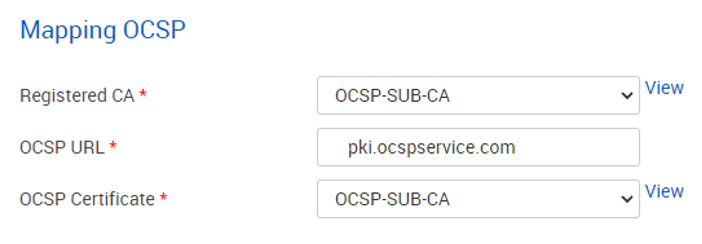
To map the OCSP certificate to an existing CA, simply click on "OCSP Config".
Select the CA to which the OCSP certificate should be mapped.
Enter the URL to your OCSP Core Responder in the OCSP URL.
For the emCA application with an internal OCSP Core Responder, this URL will be
```
https:///ocsprespondercore/
```
where `` is the Application Network address of your emCA application.
An example of a user interface can be seen in the image below.
Inspect the CA's certificate by clicking "View" next to the registered CA. The OCSP certificate can also be inspected by clicking "View" next to the desired certificate.
To view the details of the OCSP certificate, please click on icon.
Please click on the download Icon to obtain the OCSP certificate.
* DER-encoded X.509 certificate (.cer)
* Base64-encoded X.509 certificate (.cer)
* Cryptographic Message Syntax Standard PKCS#7 certificate (.p7b)

Select the export format of your choice and click "Download" to start the download of the user certificate. The user certificate will be downloaded to the standard download location of your OS.




 icon.
icon.

 Icon to obtain the OCSP certificate.
* DER-encoded X.509 certificate (.cer)
* Base64-encoded X.509 certificate (.cer)
* Cryptographic Message Syntax Standard PKCS#7 certificate (.p7b)

Select the export format of your choice and click "Download" to start the download of the user certificate. The user certificate will be downloaded to the standard download location of your OS.
Icon to obtain the OCSP certificate.
* DER-encoded X.509 certificate (.cer)
* Base64-encoded X.509 certificate (.cer)
* Cryptographic Message Syntax Standard PKCS#7 certificate (.p7b)

Select the export format of your choice and click "Download" to start the download of the user certificate. The user certificate will be downloaded to the standard download location of your OS.