> For the complete documentation index, see [llms.txt](https://emca.emudhra.com/llms.txt). Markdown versions of documentation pages are available by appending `.md` to page URLs; this page is available as [Markdown](https://emca.emudhra.com/previous-release-versions/v4.3.1/manage-emca/creating-an-issuer-ca-certificate/internal-ca-certificate-issuer.md).
# Internal CA Certificate Issuer
Administrator shall crate a Profile under Issuing CA. These steps are covered under [Configure CA Certificate Profile](/getting-started/configuring-certificate-profiles.md).
## **Officer Login**
Officer can use this profile to Sing the CSR as displayed in the following interface.
## **Generate Key Pair**
Click on "Generate Key Pair " to open the following dialog:
Enter the number of keys that you want to generate. In general, you will need 1 key for 1 CA and 1 more key, if that CA will receive an OCSP certificate.
Select the "Key Profile" you want to use from the first dropdown list.
Choose the "Algorithm" from the drop-down
Select the "Signature algorithm" from the third dropdown list. This will filter the element for the third dropdown list accordingly.
Select the "Key Algorithm" and "Key Size" from the fourth dropdown list.
Press "Proceed" to continue and authenticate the action.
Click on "Generate Key Pair(s)" to generate the keys.
After the successful generation of the key pair, the success message as shown below.
Click on "View all" or "+ New" to continue with this new Key Pair creation.
## Generate CA Certificate
After creating a key pair, the user needs to select the "Generate Certificate" or "CSR" option available in the "Action" column of the created key pair.
Click on !\[A black flag on a white background
AI-generated content may be incorrect.]\(data:image/jpeg;base64,/9j/4AAQSkZJRgABAQEAkACQAAD/2wBDAAoHBwkHBgoJCAkLCwoMDxkQDw4ODx4WFxIZJCAmJSMgIyIoLTkwKCo2KyIjMkQyNjs9QEBAJjBGS0U+Sjk/QD3/2wBDAQsLCw8NDx0QEB09KSMpPT09PT09PT09PT09PT09PT09PT09PT09PT09PT09PT09PT09PT09PT09PT09PT09PT3/wAARCAA0ADgDASIAAhEBAxEB/8QAHwAAAQUBAQEBAQEAAAAAAAAAAAECAwQFBgcICQoL/8QAtRAAAgEDAwIEAwUFBAQAAAF9AQIDAAQRBRIhMUEGE1FhByJxFDKBkaEII0KxwRVS0fAkM2JyggkKFhcYGRolJicoKSo0NTY3ODk6Q0RFRkdISUpTVFVWV1hZWmNkZWZnaGlqc3R1dnd4eXqDhIWGh4iJipKTlJWWl5iZmqKjpKWmp6ipqrKztLW2t7i5usLDxMXGx8jJytLT1NXW19jZ2uHi4+Tl5ufo6erx8vP09fb3+Pn6/8QAHwEAAwEBAQEBAQEBAQAAAAAAAAECAwQFBgcICQoL/8QAtREAAgECBAQDBAcFBAQAAQJ3AAECAxEEBSExBhJBUQdhcRMiMoEIFEKRobHBCSMzUvAVYnLRChYkNOEl8RcYGRomJygpKjU2Nzg5OkNERUZHSElKU1RVVldYWVpjZGVmZ2hpanN0dXZ3eHl6goOEhYaHiImKkpOUlZaXmJmaoqOkpaanqKmqsrO0tba3uLm6wsPExcbHyMnK0tPU1dbX2Nna4uPk5ebn6Onq8vP09fb3+Pn6/9oADAMBAAIRAxEAPwD1yLzpYwwcDNP8uf8A56Ci0/491ovLuOxtJLiX7kYyaTdtwSuHlz/89B+VHlz/APPQVi6F4ysNemeO33Iy/wB7vW+rq/3WB+hqrCIvLn/56Cjy5/8AnoKnpAwJ4IOKQytL50UZYuDiin3f/Hu1FABaf8e61HqkSTabOkgypQ8VJaf8e60l/wD8eM3+4amfwsqO6PCZZ5dP1GYWkhiwxAxU8PiPVoGzHeyCquo/8hKf/eqvketEG+VCkveZ0M3jjV5YdgnZTj7wrqPhxqN3etN9qnaX615tXoPwv+9NWsFuZz6HoN3/AMe7UUXf/Hu1FQWFp/x7rSX/APx4zf7hpbT/AI91qSSMSxsjdGGDSkrpoadnc8u8M+F7PxDe3kl5uwj4AWujm+GmjtERGJFbsc1u6RoVvo7zNASfNbcc1qU7KySFrds80Pwun+0cXKeVnp3rsvD/AIatPD8BS3yWb7xNbNFNNpWE1cgu/wDj3aii7/492opDC0/491qeiigAooooAKKKKAILv/j3aiiigD//2Q==) to start generating a CA certificate.
The above window opens after clicking on “Action”.
Certificate – use the key to generate a new CA certificate directly.
Choose "Certificate" if you want to directly generate a new CA certificate. This option is applicable if the CA is "self-signed", or the "issuing CA" is in the same instance.
CA Administrator created certificate profiles will be available under “Certificate profile” dropdown.
For "Subject DN Details", enter all Subject Distinguished Name (Subject DN) information for the CA as per the certificate profile selection.
Press "Proceed" to continue. You will be prompted to authenticate the action using your officer token. Press "Authenticate" to proceed.
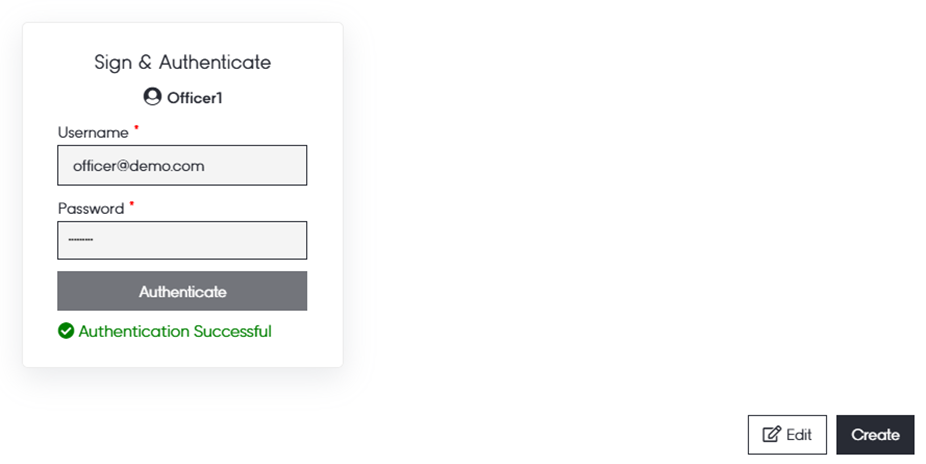
Officer is required to successfully authenticate and continue with “Create”.
The "Certificate" will be created, and the user is able to download the certificate.