> For the complete documentation index, see [llms.txt](https://emca.emudhra.com/llms.txt). Markdown versions of documentation pages are available by appending `.md` to page URLs; this page is available as [Markdown](https://emca.emudhra.com/previous-release-versions/v4.2.7/user-manual/officer/manage-crls.md).
# Manage CRLs
### Manage CRLs
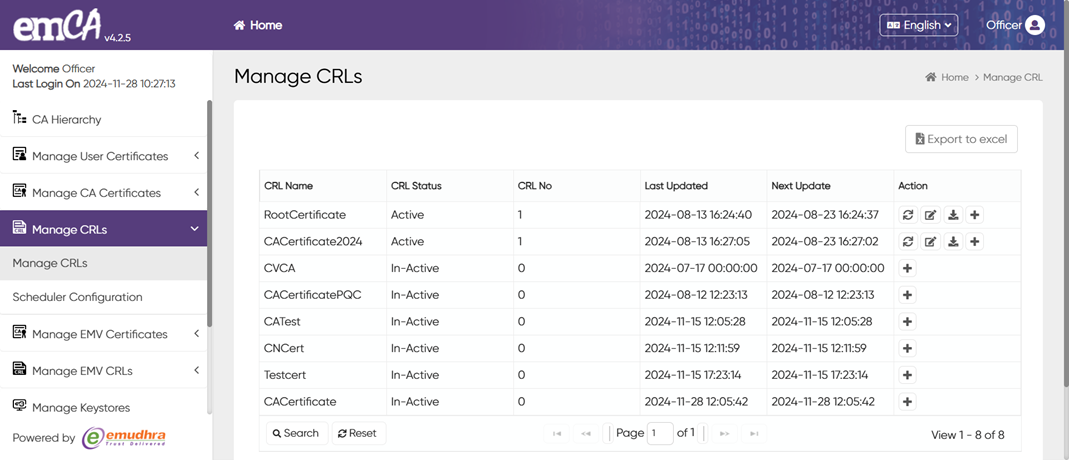
An officer can create Certificate Revocation Lists (CRLs) for all CAs in their group, configure automatic renewal for each CRL, and download the current CRL from the UI.
{% hint style="info" %}
**Information:**
CRLs are not automatically generated upon the creation of CAs.
{% endhint %}
To access the filter options, simply click on the "Search" button and the filter pop-up will appear.
You can filter by CRL Name, CRL Status, or Next Update using equal or contains comparators. Click "search" to apply the selected filter.
If you wish to remove the filter, simply click on the "Reset" button.
Click "Export to Excel" to download the table as an XLSX file to the standard download location of your OS.
**To Active CRL Profile**
To generate a new CRL, click on the button for In-Active CRLs.
Select the "signature algorithm" and "CRL Profile" from the dropdown lists. Click "Confirm" to continue.
You will be prompted to authenticate the action using your Officer token. Press "Authenticate" to proceed.
To generate a new CRL, simply click on the "Create CRL" button.
**Edit CRL Profile**
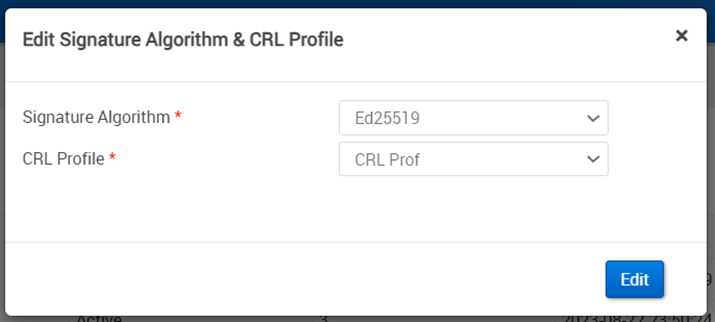
To update the CRL frequency for existing CRLs, click on the designated button.
To begin editing the fields, simply click on the "Edit" button.
To clarify, the process for editing remains unchanged from what was explained on the previous page.
**Update**
To generate a new CRL right away, simply click on the icon.
You will need to authenticate the action in a new dialog. Use your Officer token and press "Authenticate" to proceed.
To update the CRL, simply click on the "Update" button.
**Download**
To download the latest CRL onto your computer, simply click on the download icon.
**Scheduler Configuration**
An Officer can configure parts of the Push Service of the EmCA Application using the following UI.
{% hint style="info" %}
**Information:**
Some configurations are located on the server side underneath /opt/Scheduler/scheduler.properties. Please contact your System Administrator to change server-side configuration.
{% endhint %}
**Steps to Publish Certificates to LDAP**
1. On the Publish to LDAP page, Please fill in the first field with the LDAP URL.
2. Please enter the Domain Name in the second field. This is required for both certificate and CRL publication.
3. Enter the Username and Password of the LDAP system in the third and fourth fields.
4. To proceed, please press the "Confirm" button.
5. You will need to authenticate the action by pressing "Authenticate" after using your Officer token.
6. Click on "Save Settings" to save the configuration for the Push Service.

 the button for In-Active CRLs.

 on the designated button.
 icon.
You will need to authenticate the action in a new dialog. Use your Officer token and press "Authenticate" to proceed.
To update the CRL, simply click on the "Update" button.
**Download**
To download the latest CRL onto your computer, simply click on the download
icon.
You will need to authenticate the action in a new dialog. Use your Officer token and press "Authenticate" to proceed.
To update the CRL, simply click on the "Update" button.
**Download**
To download the latest CRL onto your computer, simply click on the download icon.
**Scheduler Configuration**
An Officer can configure parts of the Push Service of the EmCA Application using the following UI.
{% hint style="info" %}
**Information:**
Some configurations are located on the server side underneath /opt/Scheduler/scheduler.properties. Please contact your System Administrator to change server-side configuration.
{% endhint %}
icon.
**Scheduler Configuration**
An Officer can configure parts of the Push Service of the EmCA Application using the following UI.
{% hint style="info" %}
**Information:**
Some configurations are located on the server side underneath /opt/Scheduler/scheduler.properties. Please contact your System Administrator to change server-side configuration.
{% endhint %}
