> For the complete documentation index, see [llms.txt](https://emca.emudhra.com/llms.txt). Markdown versions of documentation pages are available by appending `.md` to page URLs; this page is available as [Markdown](https://emca.emudhra.com/previous-release-versions/v4.2.1/user-manual/manage-profiles/key-profiles/key-profile-creation/create-pkcs12-key-profile.md).
# Create PKCS12 Key Profile
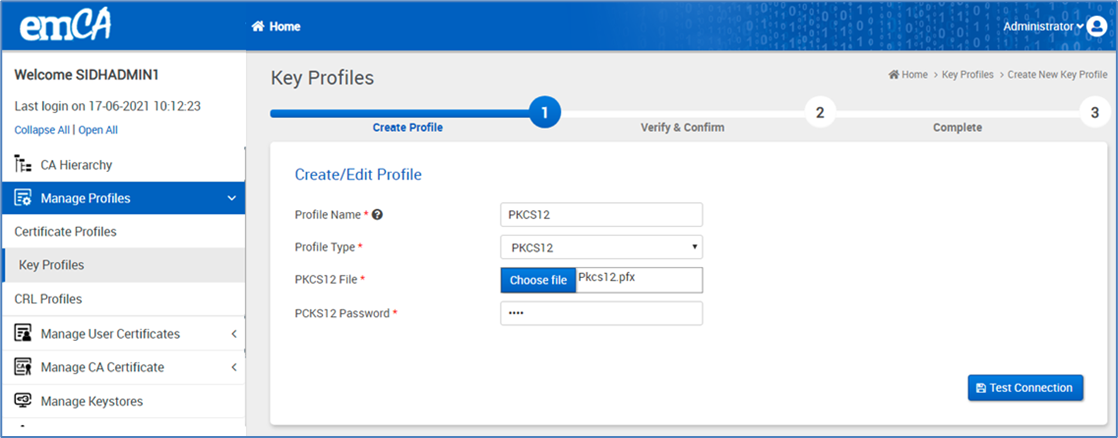
While on the create/edit profile page, input the profile name in the designated field and select PKCS12 as the profile type from the dropdown, as depicted in the figure below.
Upload the PKCS 12 file in the PKCS12 file option for a particular key profile given by your vendor for PKCS12 (.pfx file). And also enter the password in the PKCS12 password field.
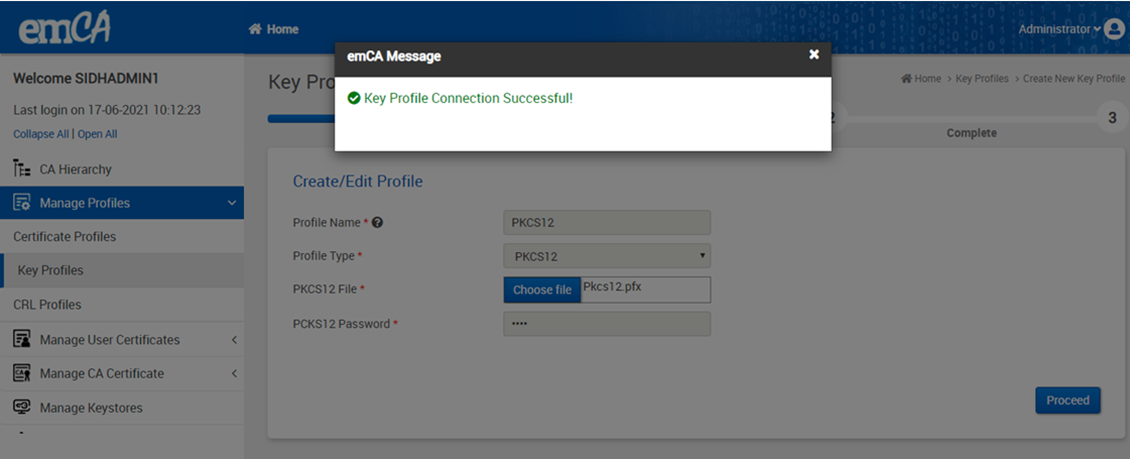
Click on “Test Connection” which displays a success message as shown in the below figure.
Click on the “Proceed” button which displays the below page.
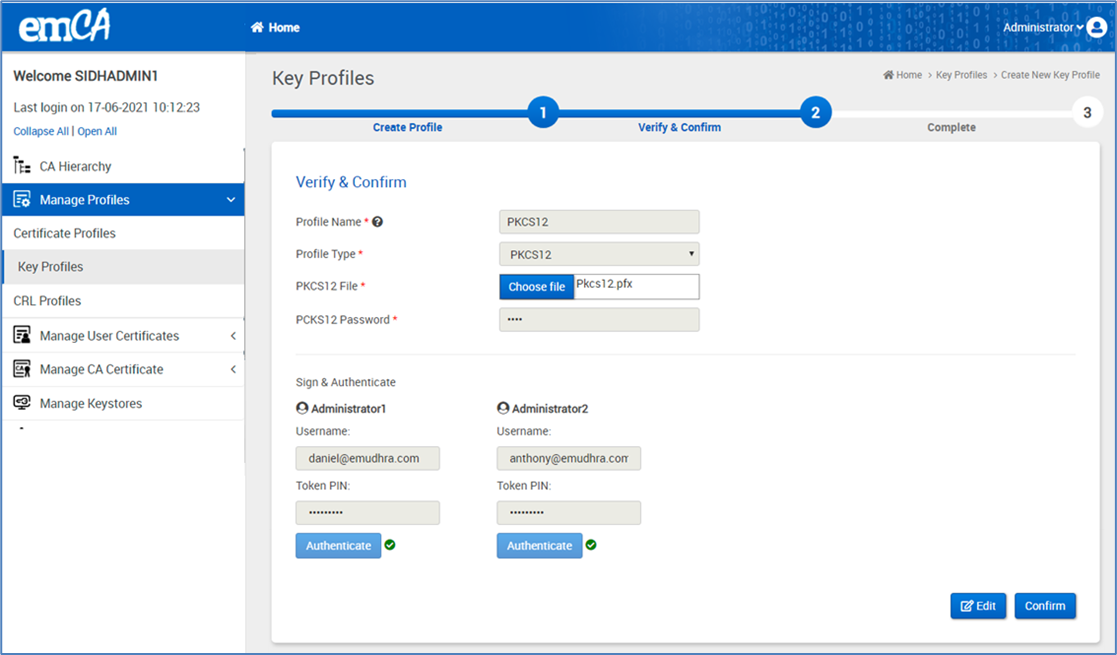
The above page displays the details entered by the “Administrator” in read-only mode.
Selecting the "Edit" button will redirect to the first step with pre-filled details. Administrators can then modify the data and proceed by clicking on the "Proceed" button.
On the Verify & Confirm page, the administrator is required to review the entered data and authenticate by signing in with a valid email ID and token PIN.
Upon selecting "Confirm," the system will redirect to the next page, as illustrated in the figure below.
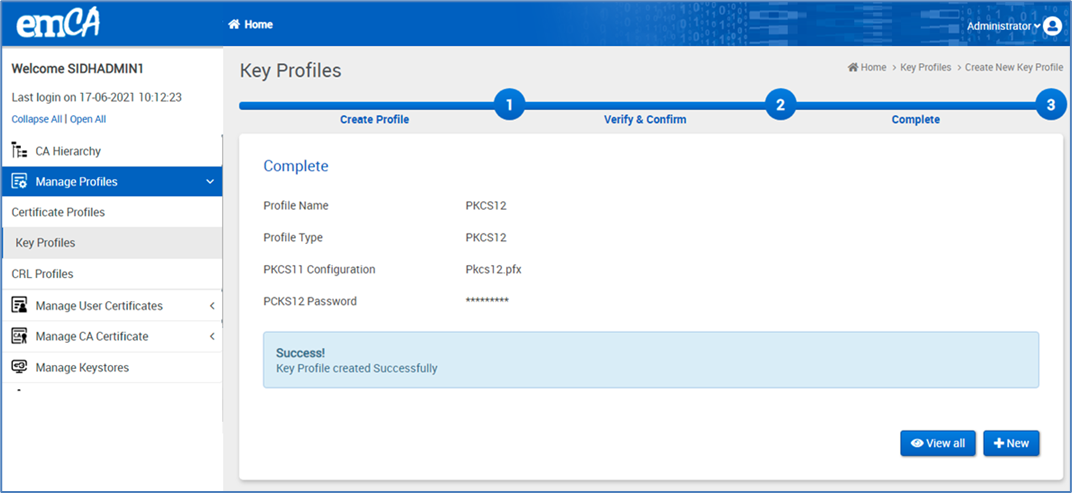
Upon selecting "Confirm," the system will redirect to the next page, as illustrated in the figure below.
By clicking on "+ New," the administrator will be directed to Create Profile page of the Key Profile creation process, where they can create a new key profile.
The newly created key profile will be reflected and updated on the "Manage Key Profile" page.