> For the complete documentation index, see [llms.txt](https://emca.emudhra.com/llms.txt). Markdown versions of documentation pages are available by appending `.md` to page URLs; this page is available as [Markdown](https://emca.emudhra.com/previous-release-versions/v4.0.17/user-manual/manage-users-and-roles/manage-user/create-new-user.md).
# Create New User
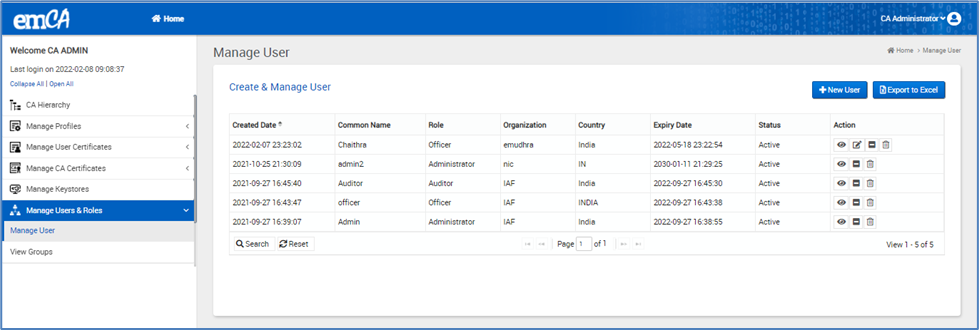
On the dashboard page, click on Manage Users & Roles-> Manage user from the sub-menu
The user will be redirected to the Manage user page. Refer to the image below.
Click on the “New User” button to create new users the below page will be displayed.
Select the group as “GRP\_001”; this is the default group created during the creation of the CA Administrator (emCA initial setup), and all users will be mapped to this default group.
Enter the Basic Information, Select the role and Other details in the sections provided, and click on the “Proceed” button.
Click on “Proceed” to navigate to the verify and confirm page.
The page will display the details entered in step 1.
Clicking on the “Edit “button will redirect to the first step with filled details, The CA Administrator can edit the data by clicking on “Proceed”.
On the verify and confirm page, the CA Administrator can verify the data entered and sign and Authenticate with a valid email ID and token PIN
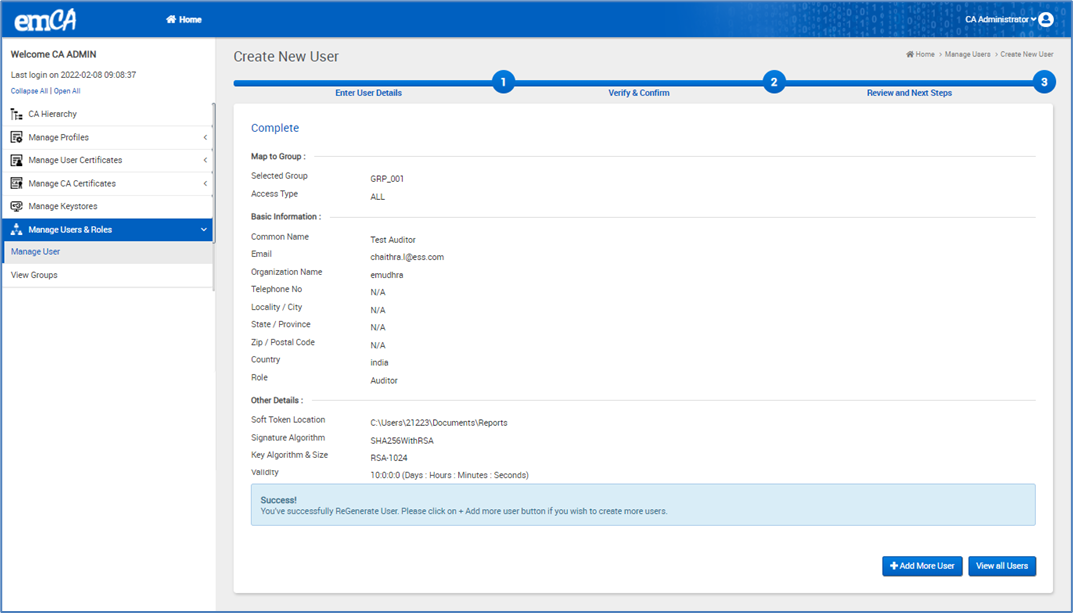
Click on “ReGenerate User” which displays the success message as shown below.