# SCT Request

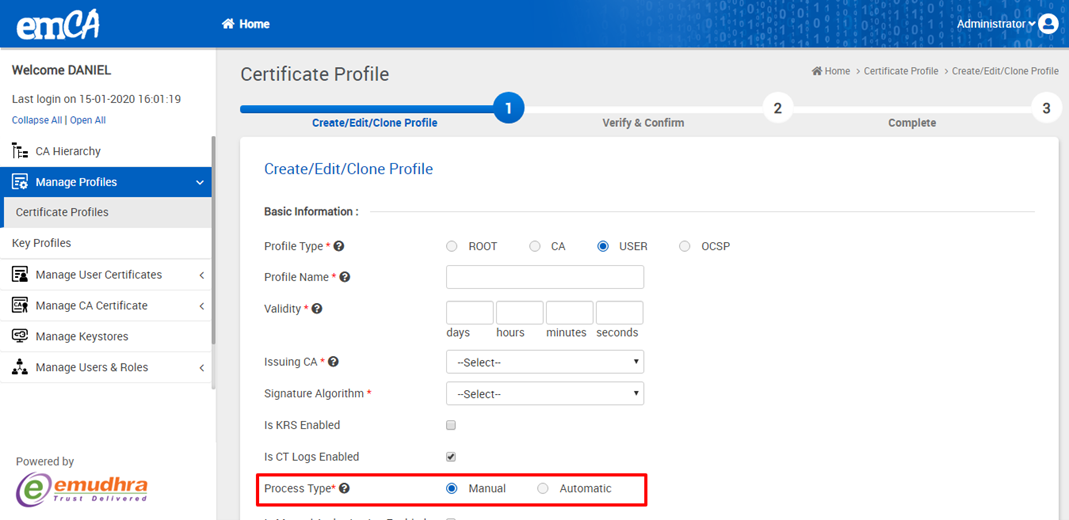
The SCT Request feature, found under Manage User Certificate, is only accessible to officers. If a certificate request is created under the category of CT Logs Enable (as indicated in the user profile), officers have the ability to import the response, view the certificate, and download it.

&#x20;

<figure><img src="https://2804668976-files.gitbook.io/~/files/v0/b/gitbook-x-prod.appspot.com/o/spaces%2FOwstGDJbR4yGRTr2aEFp%2Fuploads%2Fo586ikxkR6HsZNVRNcvK%2Fimage.png?alt=media&#x26;token=07c3d228-33b9-4724-b2f6-602825cacbed" alt=""><figcaption></figcaption></figure>

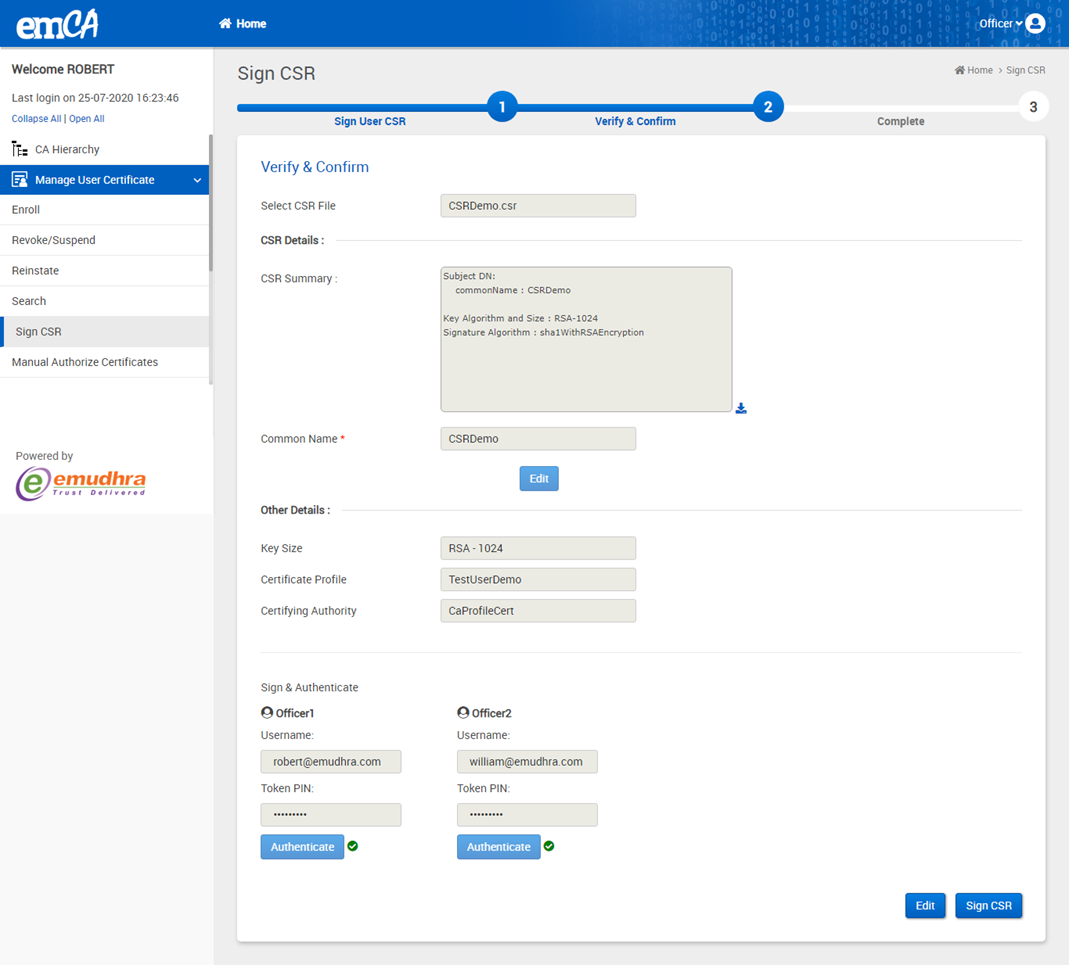
After creation of user profile go to Manage User Certificateà Sign CSR and Sign a .CSR file and select the certificate profile created in the previous step .

<figure><img src="https://2804668976-files.gitbook.io/~/files/v0/b/gitbook-x-prod.appspot.com/o/spaces%2FOwstGDJbR4yGRTr2aEFp%2Fuploads%2FGSDYeGhuf4V7tf4wnZ1q%2Fimage.png?alt=media&#x26;token=379fcaef-b012-4e0c-9c00-b252d1627ac4" alt=""><figcaption></figcaption></figure>

Click on Proceed and review the details. Authenticate if all details are correct.

<br>

<figure><img src="https://2804668976-files.gitbook.io/~/files/v0/b/gitbook-x-prod.appspot.com/o/spaces%2FOwstGDJbR4yGRTr2aEFp%2Fuploads%2F2Y9ebjduA2jdYMDnOq3p%2Fimage.png?alt=media&#x26;token=e4f11edd-6dc7-49bf-be55-4bac12c5d872" alt=""><figcaption></figcaption></figure>

&#x20;

Click on sign CSR button.

&#x20;

&#x20;

<figure><img src="https://2804668976-files.gitbook.io/~/files/v0/b/gitbook-x-prod.appspot.com/o/spaces%2FOwstGDJbR4yGRTr2aEFp%2Fuploads%2F2Gg2H8ZmbtYimycR8CAt%2Fimage.png?alt=media&#x26;token=048f5179-64ad-460f-b01a-fd2bc4b295da" alt=""><figcaption></figcaption></figure>

After sign CSR go to Manage User Certificateà SCT Request you will get the list as shown below.

<figure><img src="https://2804668976-files.gitbook.io/~/files/v0/b/gitbook-x-prod.appspot.com/o/spaces%2FOwstGDJbR4yGRTr2aEFp%2Fuploads%2FwVeFD313Ek3seR5C6DrG%2Fimage.png?alt=media&#x26;token=f73a2de5-a59c-4b22-a4c5-e4c83b465c60" alt=""><figcaption></figcaption></figure>

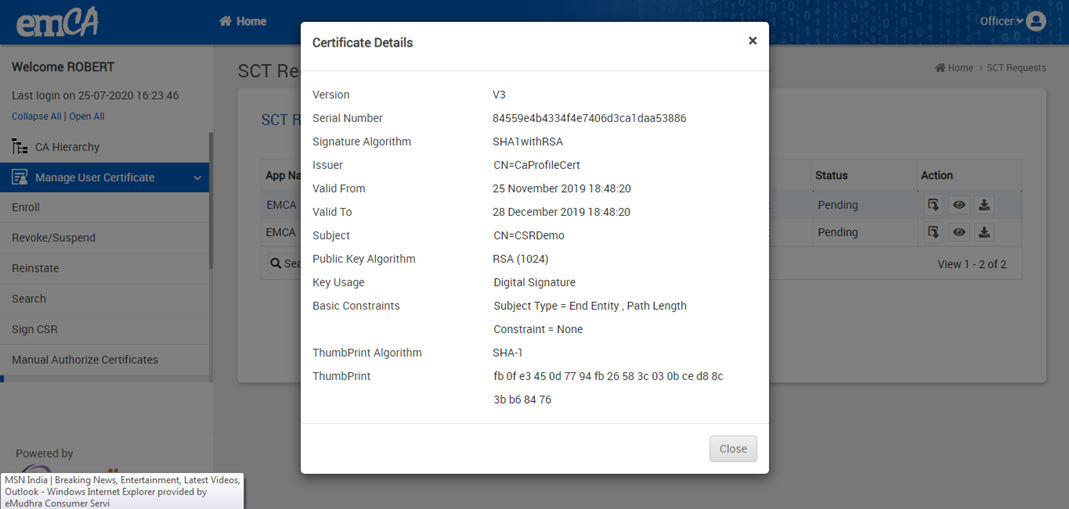
Click on View button from Action to view the certificate as shown below.

<figure><img src="https://2804668976-files.gitbook.io/~/files/v0/b/gitbook-x-prod.appspot.com/o/spaces%2FOwstGDJbR4yGRTr2aEFp%2Fuploads%2FpEgakJHImU4TwDC0SBjD%2Fimage.png?alt=media&#x26;token=a92f6a9b-44a0-4fb0-8835-45ff747e86b6" alt=""><figcaption></figcaption></figure>

Download button to download the certificate.

Click on Import button to import the response. It will display the next page as shown below:

<figure><img src="https://2804668976-files.gitbook.io/~/files/v0/b/gitbook-x-prod.appspot.com/o/spaces%2FOwstGDJbR4yGRTr2aEFp%2Fuploads%2Fvy1mrWrH450AXMA10H1s%2Fimage.png?alt=media&#x26;token=da7677f0-126f-4cae-b69b-a7f50c74b841" alt=""><figcaption></figcaption></figure>

Click on Add file button and select the .txt file as shown below:

<figure><img src="https://2804668976-files.gitbook.io/~/files/v0/b/gitbook-x-prod.appspot.com/o/spaces%2FOwstGDJbR4yGRTr2aEFp%2Fuploads%2FObr0AbvKO9wTiN1tsHAd%2Fimage.png?alt=media&#x26;token=e4500281-c6d8-47bd-84ff-76b47da2184e" alt=""><figcaption></figcaption></figure>

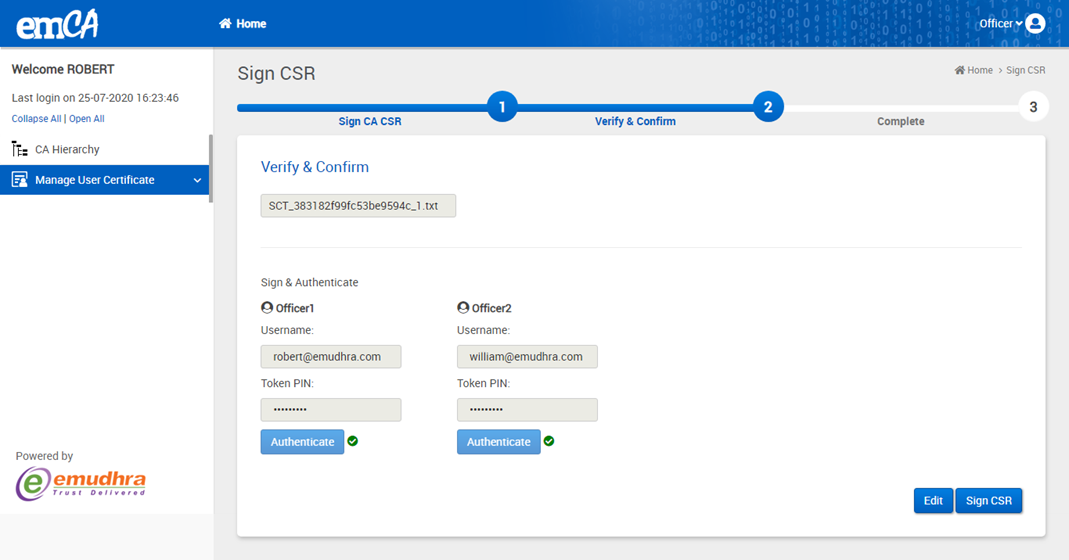
Click on proceed button and authenticate with the email id and password:

<figure><img src="https://2804668976-files.gitbook.io/~/files/v0/b/gitbook-x-prod.appspot.com/o/spaces%2FOwstGDJbR4yGRTr2aEFp%2Fuploads%2FQZfIKMpQM8WHrXQKpJLc%2Fimage.png?alt=media&#x26;token=b64fca85-8d4b-45b9-ab5d-042f14214c86" alt=""><figcaption></figcaption></figure>

Click on Sign CSR to get a success message and download the certificate