# Key Profile Creation

On the Key Profile page, click the "New Profile" button as shown in the figure below.

<figure><img src="https://2804668976-files.gitbook.io/~/files/v0/b/gitbook-x-prod.appspot.com/o/spaces%2FOwstGDJbR4yGRTr2aEFp%2Fuploads%2Ff0uRr5LX5kEZOOliu229%2Fimage.png?alt=media&#x26;token=8994bdf9-7e05-4a5b-9d4b-b69c5255710e" alt=""><figcaption></figcaption></figure>

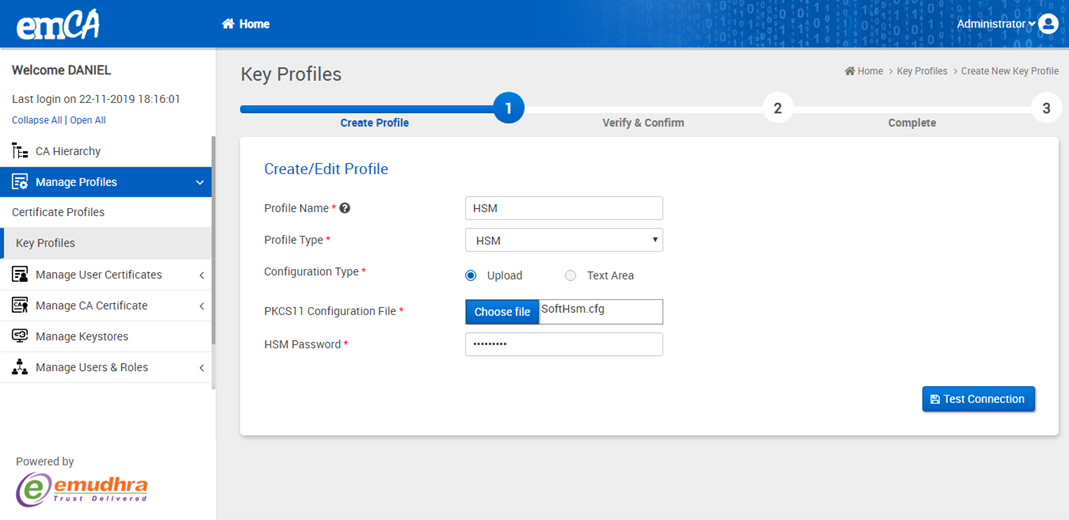
&#x20;On clicking the +New Profile button, the following page, as shown in the figure below, will be displayed to the user.                                   &#x20;

<figure><img src="https://2804668976-files.gitbook.io/~/files/v0/b/gitbook-x-prod.appspot.com/o/spaces%2FOwstGDJbR4yGRTr2aEFp%2Fuploads%2F0gQT0M40g0WmrdXAt0R8%2Fimage.png?alt=media&#x26;token=79054884-efd0-4c3b-8861-a7bca0830c81" alt=""><figcaption></figcaption></figure>

<figure><img src="https://2804668976-files.gitbook.io/~/files/v0/b/gitbook-x-prod.appspot.com/o/spaces%2FOwstGDJbR4yGRTr2aEFp%2Fuploads%2FgN1TzhOJFs0DAiJKrKbe%2Fimage.png?alt=media&#x26;token=0583a5d9-f7d3-4ea3-b064-c86732fbbe3a" alt=""><figcaption></figcaption></figure>

Users can fill in the required details and either upload a .cfg 'Configuration' file or paste the configuration in a text area. They can then click on 'Test Connection' to verify whether the uploaded 'Configuration' file is valid or not.                                                   &#x20;

<figure><img src="https://2804668976-files.gitbook.io/~/files/v0/b/gitbook-x-prod.appspot.com/o/spaces%2FOwstGDJbR4yGRTr2aEFp%2Fuploads%2Fx11t9uSitVwtvd16mHoI%2Fimage.png?alt=media&#x26;token=b455e730-07f2-4eed-9563-6225f754504e" alt=""><figcaption></figcaption></figure>

After a successful connection, click on the Proceed button to continue. The following screen will be displayed.                                                              &#x20;

<figure><img src="https://2804668976-files.gitbook.io/~/files/v0/b/gitbook-x-prod.appspot.com/o/spaces%2FOwstGDJbR4yGRTr2aEFp%2Fuploads%2FHSbPpVrBZi9BEP3HsnjQ%2Fimage.png?alt=media&#x26;token=9101e65f-054b-422a-9114-336fa66a35c7" alt=""><figcaption></figcaption></figure>

Click the confirm button to proceed to the third page and receive the success message displayed below:                                         &#x20;

<figure><img src="https://2804668976-files.gitbook.io/~/files/v0/b/gitbook-x-prod.appspot.com/o/spaces%2FOwstGDJbR4yGRTr2aEFp%2Fuploads%2FQHzd8NLVOks72r9FEP4v%2Fimage.png?alt=media&#x26;token=ba4b9c5d-3ce1-460b-8903-18af954df836" alt=""><figcaption></figcaption></figure>