> For the complete documentation index, see [llms.txt](https://emca.emudhra.com/llms.txt). Markdown versions of documentation pages are available by appending `.md` to page URLs; this page is available as [Markdown](https://emca.emudhra.com/previous-release-versions/v4.0.13/user-manual/manage-ca-certificate/enroll/generate-signing-csr.md).
# Generate Signing CSR
Click on CA Certificate Management->Enrol left menu displays below page.
Already generated key pair will be displayed. If not then generate new kay pair on click of Generate Key Pair button.
Click on Manage icon in Action column following page will be displayed (figure 92)
By default “Certificate” radio button will be selected. Please change the option to “CSR”
Enter the common name which is a mandatory field
Optional: Subject DN (email, Organisation etc.) can be added by selecting from dropdown and clicking on + button.
Optional: Customize OID enter valid OID and corresponding value (OID “2.5.4.4” which corresponds to surname value is “Patel”
Optional: Customize OID will add Subject DN where User can add additional Distinguish Name by entering OID and Value
Click on “Save and Proceed button shown in above figure.
This above Figure will display the details entered by you in step 1.
Click on “Edit “button will redirect to first step with filled details, Officer can edit the data click on “Save and Proceed”.
In the 2nd step officer can verify the data entered. Sign and Authenticate with valid email ID and token PIN.
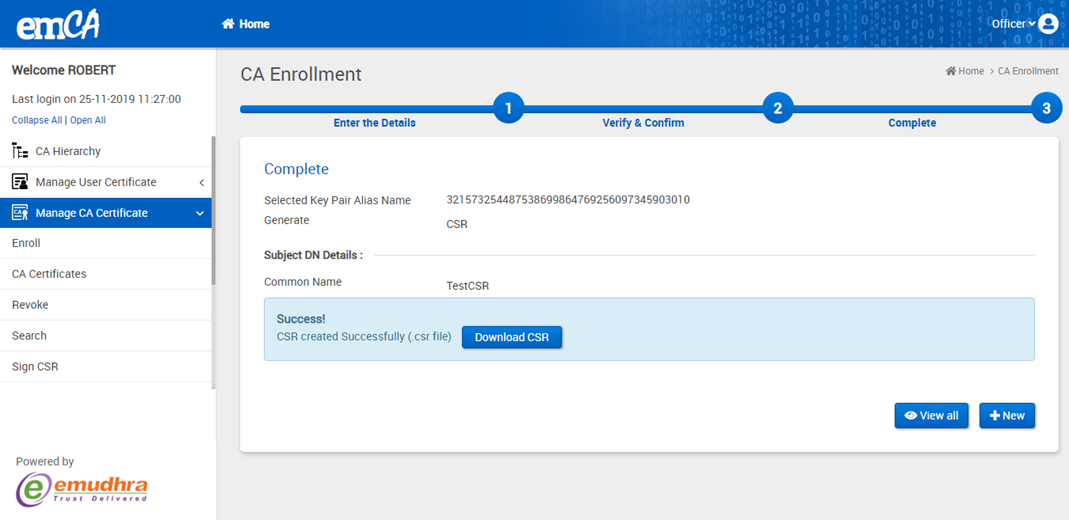
Click on “Create” will redirect to Figure below.
Clicking on “Download Certificate” will download .csr in the system.
Clicking on View all will redirect officer to “CA certificate” page
Clicking on “+ New” will redirect officer to step1 of enrollment where officer will be able to create Root, CA certificate/Create CSR. Created certificates will be updated in “CA certificate” with status as pending.